Open A Ticket
How to Open a New Ticket
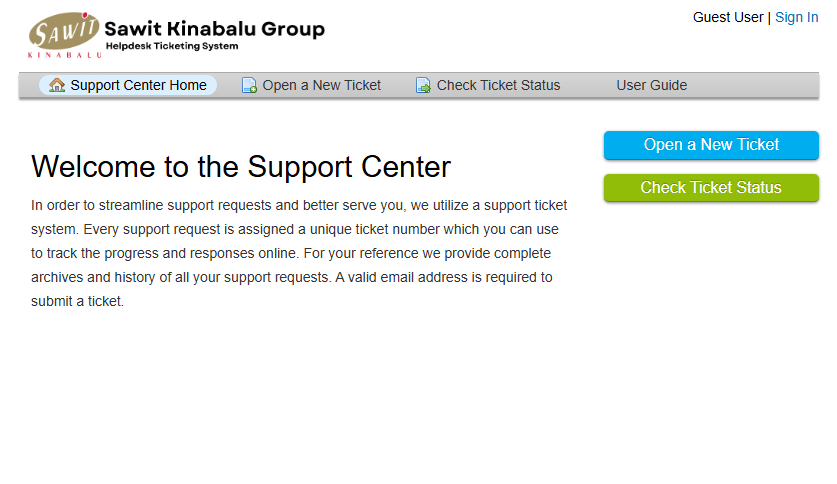
Follow these steps to open a new support ticket:
1. Go to the Client Portal
Visit the Client Portal page of the Help Desk.


Click on either one of the “Open a New Ticket” buttons.
2. Sign in to the helpdesk portal
You will be redirected to a sign in page.
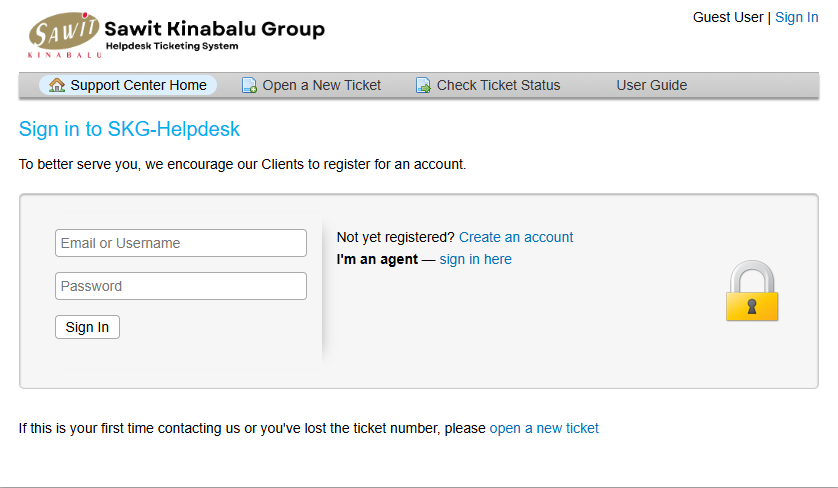
Fill in your: Email Address & Password
3. Select a Help Topic
Choose the Main Help Topic that best describes your issue.
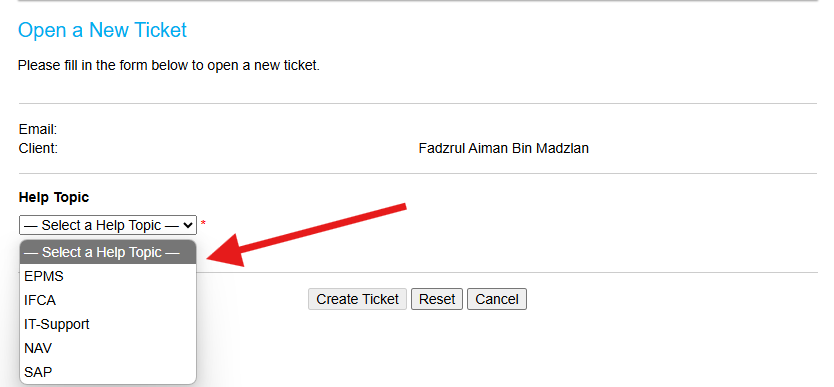
Important: Some Help Topics have multiple levels. After selecting the main topic, subtopics will appear.
If you already know the subtopic: Select the appropriate first-level subtopic that further categorizes your issue.
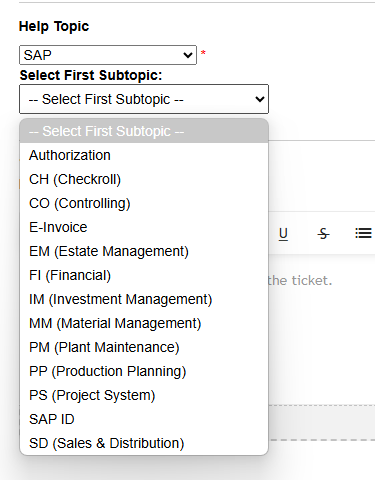
If a second-level subtopic appears: Make sure to select the most specific option available.
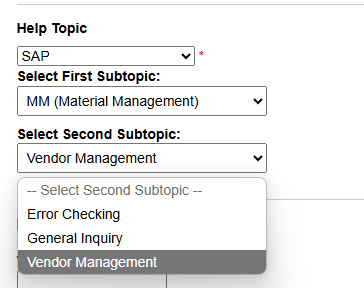
✅ Tip: Selecting the most accurate and detailed Help Topic ensures your ticket is routed to the right support team without delay.
4. Describe Your Issue
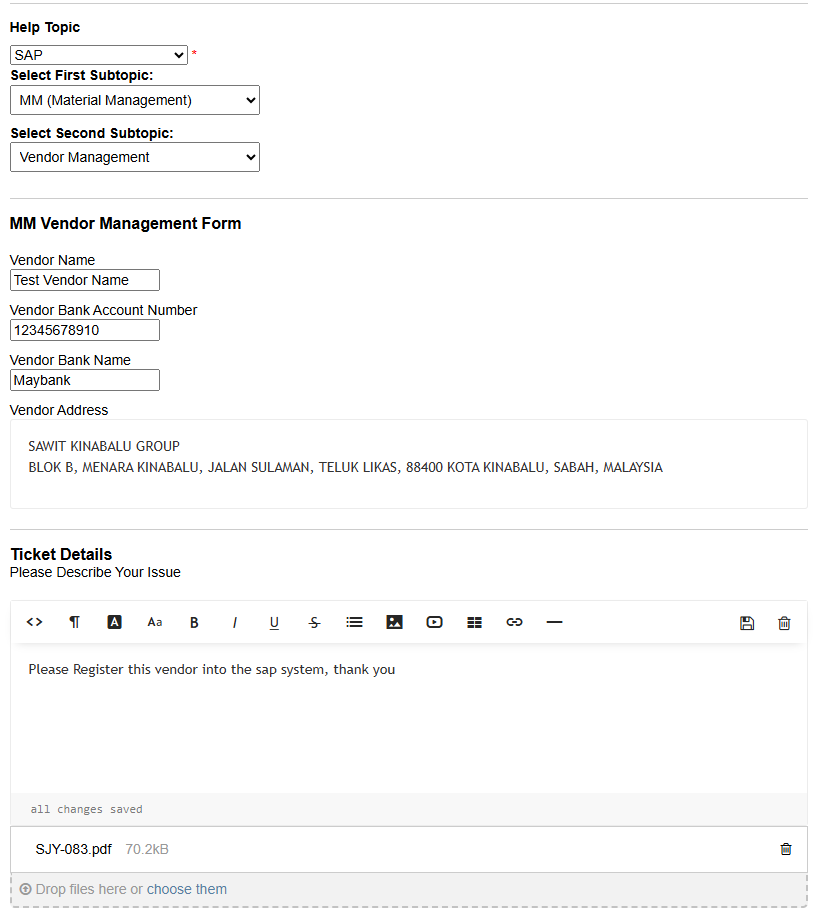
Add a short, clear Issue Summary (like the subject of an email).
Provide detailed information in the Message box.
(Optional) Attach images, videos, or links using the rich text toolbar.
📝 More details = faster resolution!
5. Submit Your Ticket
Click the “Create Ticket” button to submit.

6. Ticket Confirmation
Once submitted, you will recieve a email that your ticket has been successfully created and the ticket number.
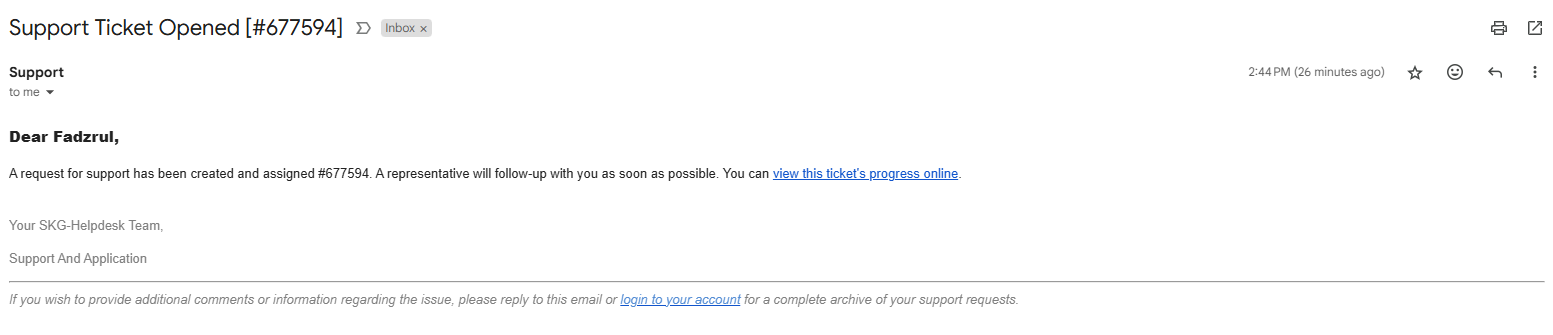
You can also view the ticket in the Tickets section of the Client Portal.
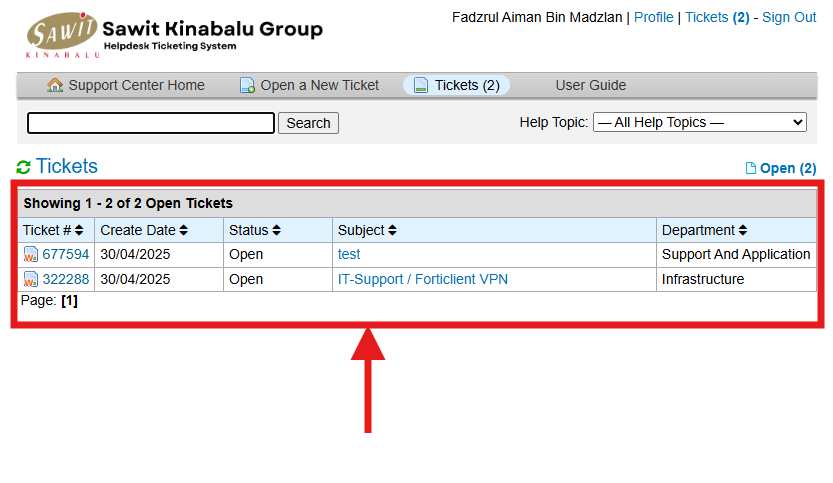
🎉 Congratulations! Your ticket is now open and will be handled by the support team.